
This guide is to show how to setup OneSales POS link for first time.
How to get this plugin?
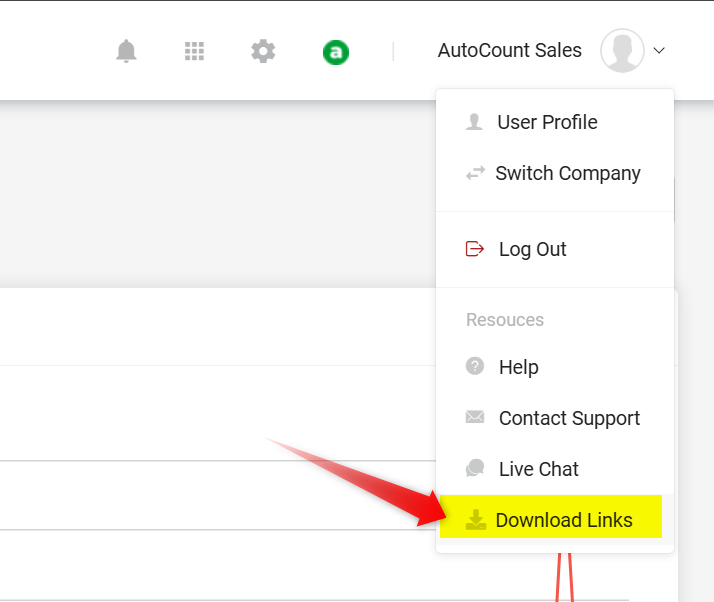
1. Go to OneSales Backend and click Download Links
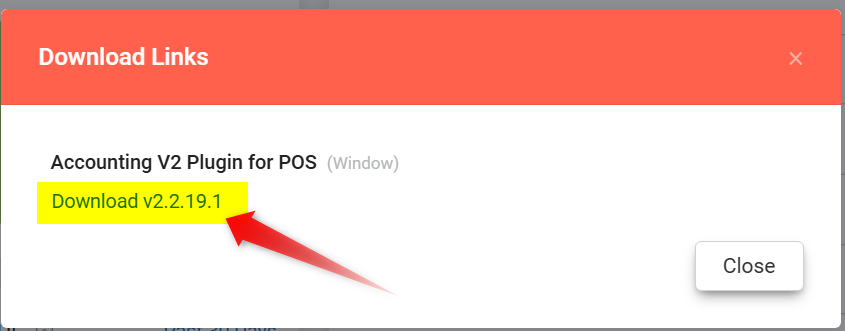
2. Click the plugin file to download
How to setup OneSales POS Link for First Time
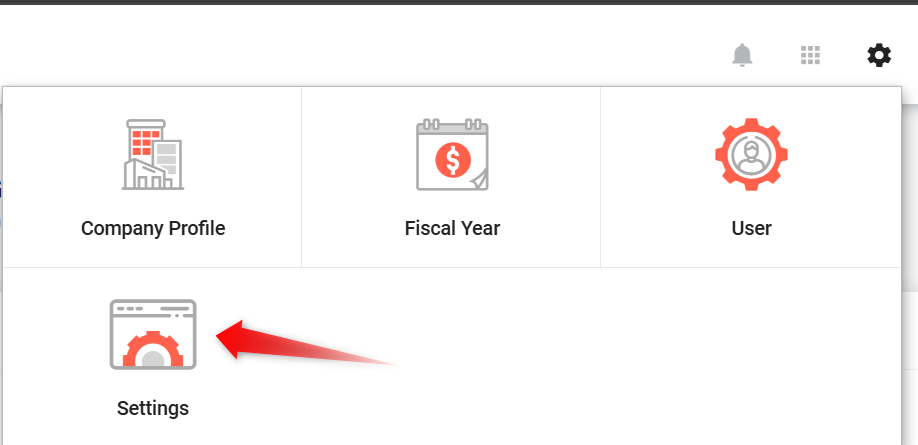
1. Go to OneSales Backend and click Settings
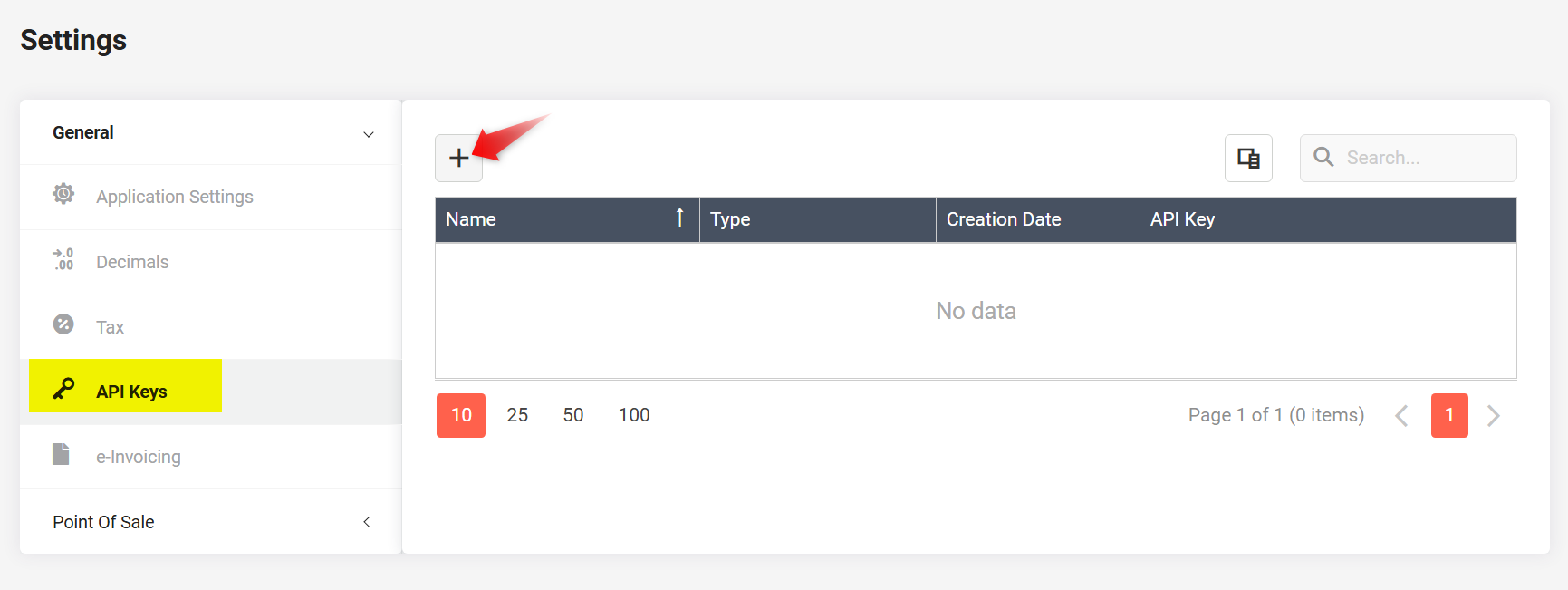
2. Go to API Keys and click "+" button
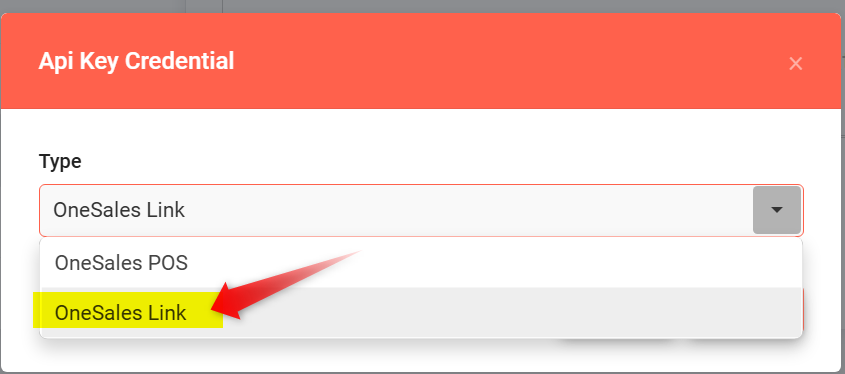
3. Select OneSales Link and click Create
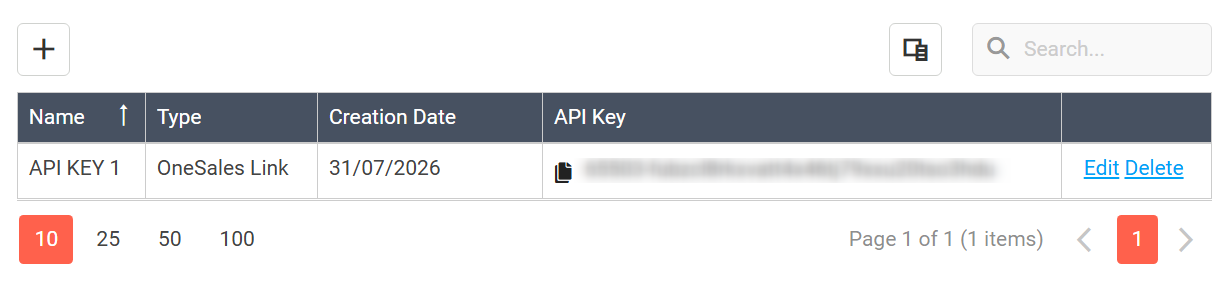
4. Make sure API Key is created.
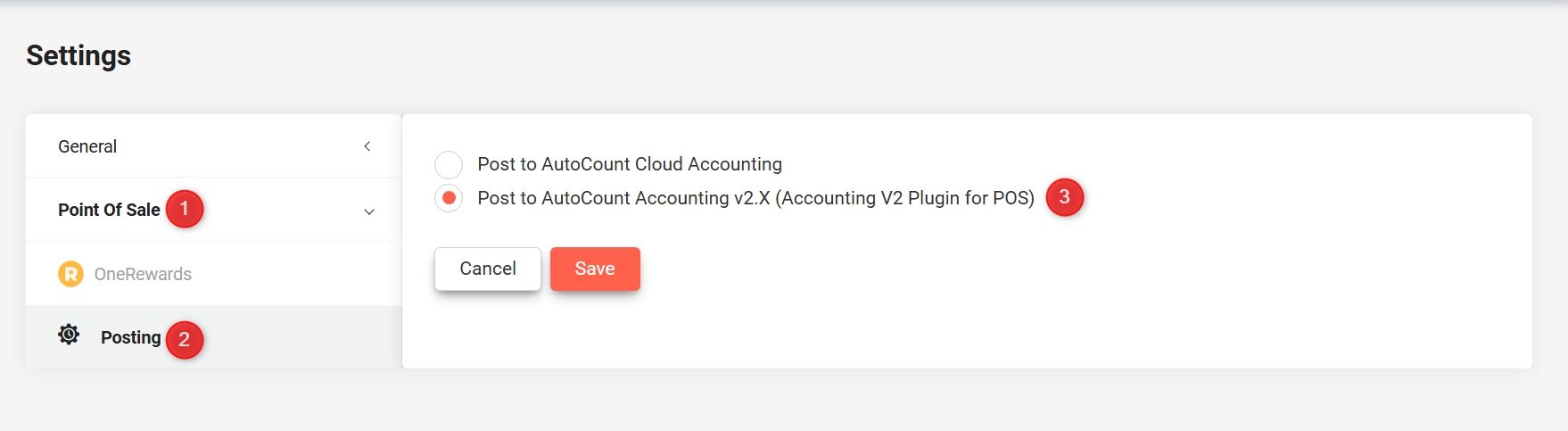
5. Go to Point Of Sale and click Posting
6. Select Post to AutoCount Accounting v2.X and click "Save"
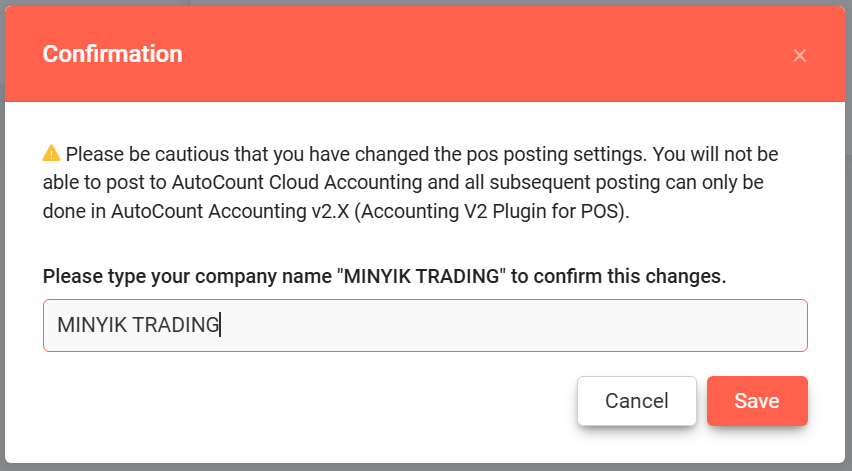
7. Enter your company name and click "Save"
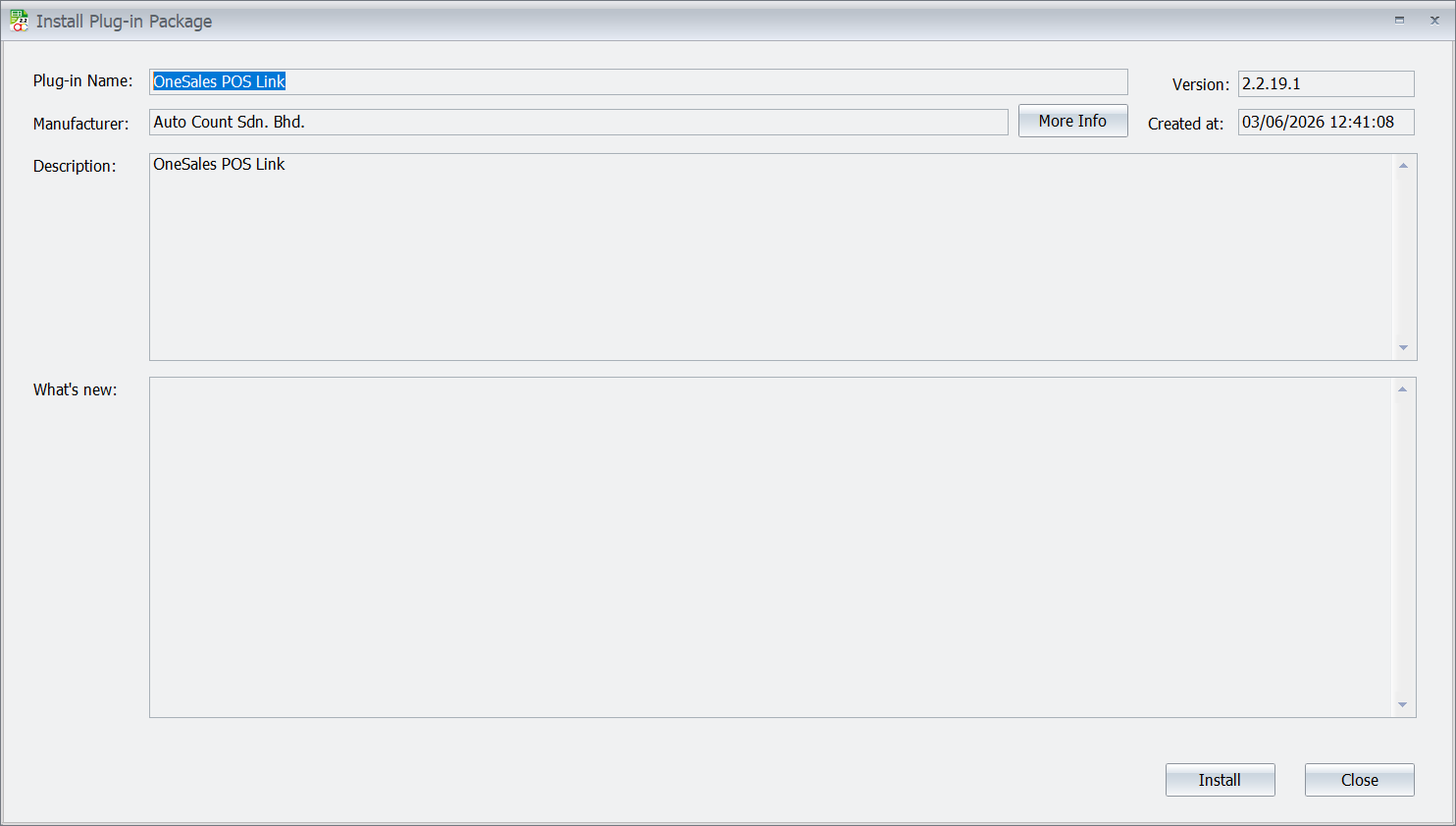
8. Login AutoCount v2 and install OneSales POS Link in Plugin Manager
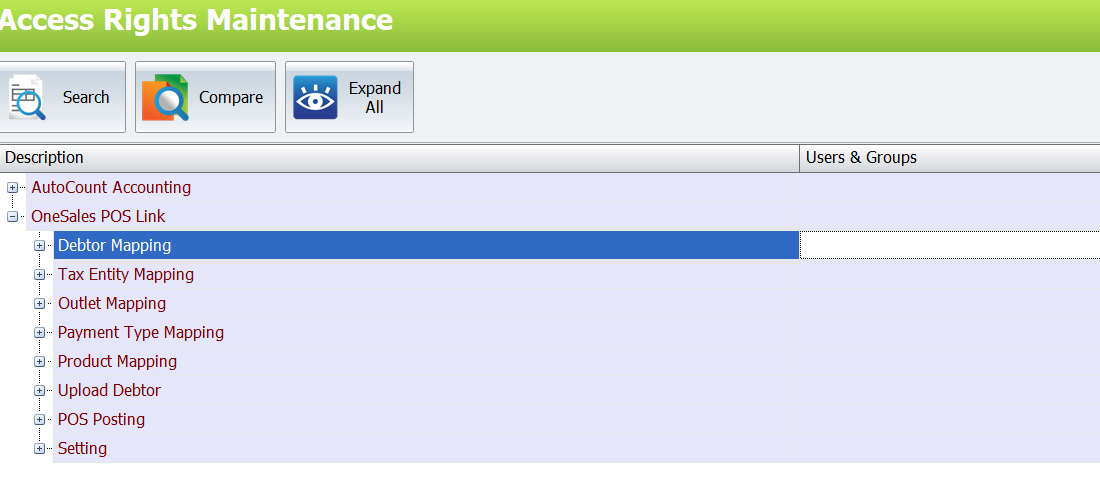
9. Open Access Rights and enable OneSales POS Link
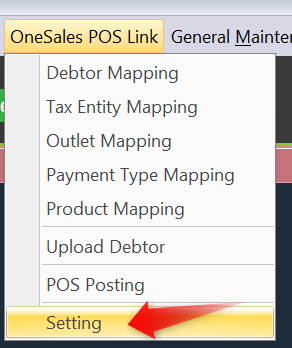
10. Go to OneSales POS Link Plugin Tab and click "Setting"
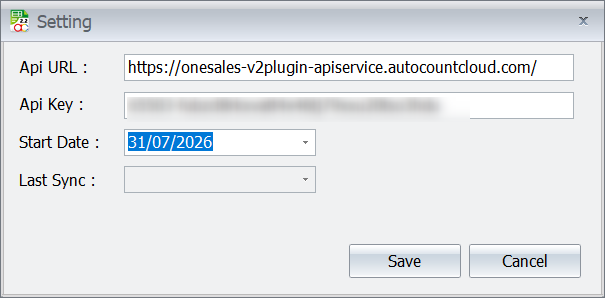
11. Paste your API Key and select start date
12. You are now finish setup for this plugin. You can post your sales to AutoCount v2 now.
Prepared by Min Yik 260731